Build a Bulletproof Local Backup System for Your Home Office
Secure your professional assets by implementing a high-speed, automated local backup system that guarantees data recovery even during hardware failure.
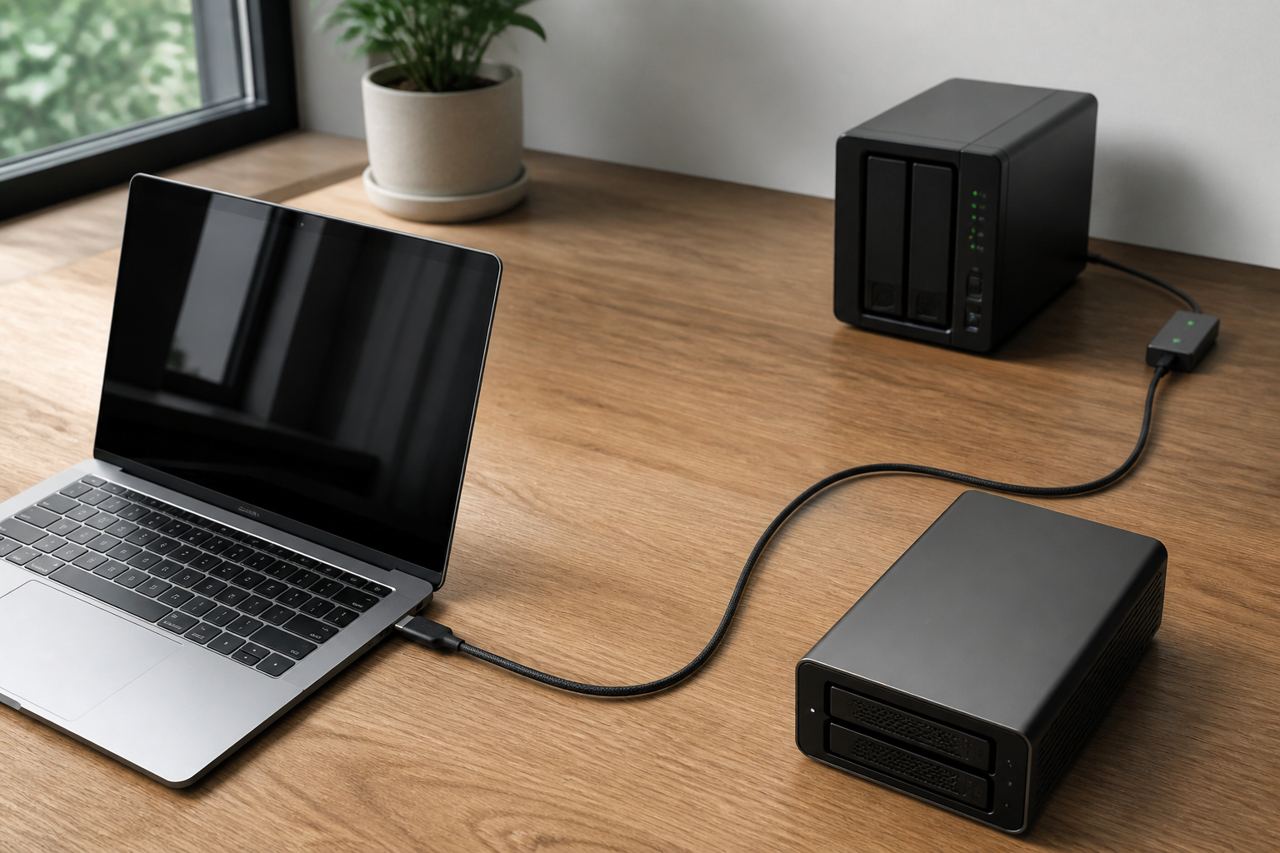
In the modern home office, your data is your most valuable asset. While cloud storage services like Dropbox or Google Drive have become the default for many, relying solely on the cloud is a precarious strategy. Syncing is not the same as backing up; if a file is corrupted or accidentally deleted, that error often propagates across all synced devices instantly. A true local backup system provides a safety net that is faster, more secure, and entirely within your physical control.
Transitioning to a robust local backup workflow involves more than just plugging in a thumb drive once a month. To achieve peace of mind, you need an automated, redundant system that follows industry standards like the 3-2-1 rule. This guide will walk you through selecting the right hardware, configuring automated snapshots, and ensuring your professional work—from large video files to sensitive client databases—is protected against drive failure and accidental loss.
Understanding the 3-2-1 Backup Philosophy
Before purchasing hardware, it is critical to understand the architecture of a reliable backup. The gold standard for data protection is the 3-2-1 rule. This strategy dictates that you should have three copies of your data (the original and two backups), stored on two different media types (such as an external SSD and a mechanical NAS), with one copy stored off-site.
For a home office, the 'two different media' part of this rule is where most people fail. Storing your backup on a separate partition of your primary computer's drive does not count. If the physical drive fails, both your original data and your backup vanish simultaneously. A proper local system utilizes external physical hardware that operates independently of your computer’s internal health.
Choosing Your Local Hardware: DAS vs. NAS
There are two primary routes for local backups: Direct Attached Storage (DAS) and Network Attached Storage (NAS). A DAS is typically an external drive connected via USB-C or Thunderbolt. It is incredibly fast, making it ideal for creative professionals working with large files. However, it only backs up the machine it is physically plugged into.
A NAS, on the other hand, connects to your router via Ethernet. It acts as a private server, allowing every device on your Wi-Fi network to back up to it simultaneously. While slightly slower than a direct cable connection, a NAS offers superior redundancy through RAID (Redundant Array of Independent Disks) configurations, which protect you even if one of the physical hard drives inside the unit fails.
- Internal SSD: Your primary workspace for speed.
- External DAS (RAID 1): High-speed daily clones of your active projects.
- NAS (RAID 5 or 6): Long-term archival and multi-device backups.
- Cold Storage: An encrypted drive kept in a fireproof safe or off-site.
Automating the Backup Process
The greatest weakness of any backup system is the 'human element.' If you have to remember to drag and drop files manually, you eventually will forget. True data security relies on automation. Both macOS (Time Machine) and Windows (File History) have built-in tools that can handle this, but third-party tools often provide more granular control.
For advanced users, specific utilities can be scripted to run at intervals. For example, using a simple 'rsync' command on Unix-based systems (macOS and Linux) ensures that only the changes made since the last backup are transferred, saving time and bandwidth. Below is an example of a simple command that mirrors a project folder to an external volume.
rsync -av --delete /Users/Work/Projects/ /Volumes/BackupDrive/Projects_Mirror/Configuring Snapshots and Versioning
A backup is not just a copy of what you have now; it is a history of what you had. This is known as versioning. If you realize today that you deleted a crucial paragraph in a document three days ago, a simple 'mirror' backup won't help you—it will have already mirrored the deletion.
Modern NAS units and high-end backup software use 'Snapshots.' These are point-in-time markers that allow you to browse your folders as they existed at specific hours or days in the past. When setting up your system, configure your software to keep hourly snapshots for the last 24 hours, daily snapshots for the last month, and monthly snapshots for the last year. This tiered approach provides maximum recovery depth without consuming excessive disk space.
Data doesn't truly exist until it is stored in at least three places. The cost of a redundant drive is always lower than the cost of data recovery services.
Testing Your Recovery Plan
The most common mistake engineers see is a 'Schrödinger’s Backup'—a system that appears to be running but has never been tested. Every quarter, you should perform a 'fire drill.' Attempt to recover a random set of files from your NAS or external drive to ensure the data is readable and the transfer speeds are acceptable.
Check the health of your physical drives using S.M.A.R.T. monitoring tools. Hard drives are mechanical devices with a 100% failure rate over a long enough timeline. By checking for reallocated sectors or spin-up errors every few months, you can replace a failing drive before it compromises your data integrity.
Expert insights
- Always use 'High-Endurance' or 'NAS-Grade' hard drives (like WD Red or Seagate IronWolf) for local backup units; standard desktop drives are not designed for 24/7 operation and fail significantly sooner in a backup environment.
- Encrypt your local backups at the hardware or software level. A physical drive is a theft risk; without encryption, your sensitive professional data is easily accessible to anyone who picks up the drive.
Statistics & data
- According to the Backblaze 2023 Drive Stats report, the average failure rate for mechanical hard drives across their data centers was approximately 1.7%, though that number increases significantly as drives exceed the four-year mark.
- A study by the Aberdeen Group found that the average cost of downtime for small businesses can exceed $8,000 per hour, emphasizing the need for high-speed local recovery over slow cloud downloads.
Key takeaways
- Implement the 3-2-1 rule: three copies, two media types, one off-site.
- Prioritize automation over manual file copying to ensure consistency.
- Use NAS-grade drives and RAID configurations for physical hardware redundancy.
- Regularly test your backups to verify that data can actually be recovered.
Frequently asked questions
Can I use an old laptop as a DIY NAS?
Yes, using software like TrueNAS or Unraid, you can repurpose old hardware. However, ensure the laptop has a reliable Ethernet connection, as backing up over old Wi-Fi standards is significantly slower.
Is a RAID array a backup?
No. RAID protects against hardware failure (a drive dying), but it does not protect against accidental deletion, file corruption, or malware. You still need a separate logical backup of the RAID volume.
How often should I replace my backup drives?
Most professionals recommend replacing mechanical HDDs every 3 to 5 years, even if they aren't showing signs of failure, to proactively avoid the increased mathmatical risk of wear-related crashes.
External references
Keep learning with StackForge
New, expert-reviewed tutorials are published regularly. Explore more guides in Gadgets & How-To Guides to deepen your skills.
More Gadgets & How-To Guides guides →
Written & reviewed by
Justin Schmella
Senior Industry Researcher & Content Specialist
Justin Schmella is a senior software engineer and technical educator with more than eight years of hands-on experience shipping production systems across web, cloud, and developer tooling. He began his career as a full-stack developer at a fast-growing SaaS company, where he led the migration of a monolithic application to a modern, service-oriented architecture used by hundreds of thousands of users.
Related tutorials
Mastering the macOS Terminal: A Guide to Boosting Productivity
Unlock the true power of your Mac by mastering the command line for faster workflows and advanced system control.
Mastering macOS Window Management: From Stage Manager to Shortcuts
A deep dive into organizing your Mac workspace for better focus and faster multitasking using built-in Apple tools.
Mastering macOS Window Management for Ultimate Productivity
Transform your cluttered Mac desktop into a streamlined workspace using built-in macOS tools and hidden power-user shortcuts.