Mastering macOS Window Management: Beyond the Basics
Transform your chaotic desktop into a streamlined workspace using built-in macOS features and professional window management techniques.
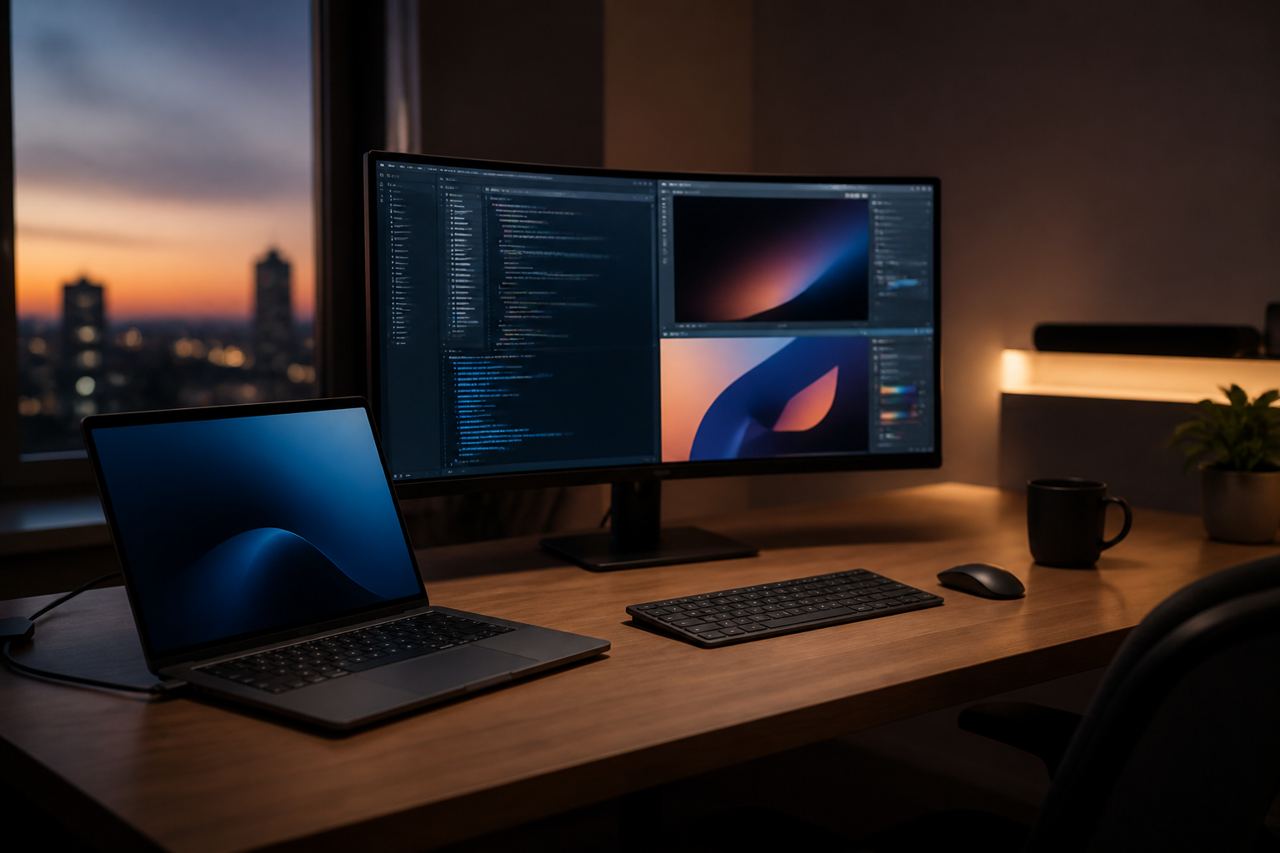
For many Mac users, productivity is often hampered by a cluttered digital desktop. While macOS is celebrated for its aesthetic elegance, the way it handles multiple open windows can quickly become overwhelming when you are juggling Slack, a code editor, dozen of browser tabs, and a design tool. Relying solely on the 'Command-Tab' switcher is a reactive way to work, forcing your brain to constantly re-orient itself every time you change tasks.
This guide moves beyond simple clicking. We will explore the nuances of Stage Manager, Mission Control, and the hidden keyboard shortcuts that every power user should know. By mastering these built-in tools—and supplementing them with precision third-party utilities—you can create a frictionless environment that supports deep work and reduces cognitive load.
Mastering Mission Control and Desktop Spaces
Mission Control is the foundational layer of macOS window management, yet it remains underutilized by the average user. By swiping up with four fingers on your trackpad or pressing F3, you gain a bird's-eye view of every open application. However, the real power lies in 'Spaces'—the virtual desktops located at the top of the Mission Control interface.
Virtual desktops allow you to separate your life into distinct contexts. For instance, you could have a 'Development' space, a 'Communication' space for email and chat, and a professional 'Writing' space. This prevents cross-contamination of focus. To move windows between spaces quickly, simply click and hold the title bar of any window and press Control + Left/Right arrow key to slide it into a neighboring desktop.
- Control + Up Arrow: Open Mission Control.
- Control + Down Arrow: Show all windows of the front-most application (App Exposé).
- Option + Click the Green Zoom button: Toggles between maximizing and filling the screen without entering Full Screen mode.
Leveling Up with Stage Manager
Introduced in macOS Ventura, Stage Manager represents Apple's latest attempt to solve the 'messy desk' problem. Unlike Mission Control, which shows everything at once, Stage Manager keeps your current app front and center while tucking other active apps into a visual strip on the left side of your screen. This creates a focused workspace while maintaining one-click access to other tools.
The secret to Stage Manager is 'Grouping.' If you are working on a project that requires both Safari and Notes, you can drag the Safari window onto the Notes window while Stage Manager is active. These two apps are now linked as a single group. When you switch away and back again, both apps will reappear in the exact layout you left them in. This is a game-changer for comparative research or cross-referencing documentation.
Stage Manager isn't about seeing everything—it's about seeing exactly what you need for the current task, and nothing else.
The Power User's Secret: Keyboard Shortcuts for Tiling
While macOS lacks a robust native 'Window Snapping' feature like Windows 11, it does offer basic tiling functionality hidden behind the green 'Zoom' button. If you hover your cursor over the green circle in the top-left of any window, a menu appears allowing you to tile the window to the left or right half of the screen. This immediately triggers a Split View mode.
For developers and technical editors, navigating these menus with a mouse is too slow. You can create custom shortcuts in System Settings, but most professionals prefer more granular control. Even without third-party software, you can use the following default shortcuts to navigate your clutter efficiently:
- Command + Tilde (~): Cycles through windows of the currently active application.
- Command + M: Minimizes the active window to the Dock (use carefully, as this can 'hide' work).
- Command + H: Hides the application entirely, instantly clearing it from view.
Extending macOS with Professional Snap Tools
If you find the built-in Apple tools limiting, the developer community has created phenomenal utilities that add 'snapping' zones to macOS windows. Tools like Rectangle (open source) or Magnet allow you to throw windows into quarters, halves, or even thirds using simple drag-and-drop or keyboard combinations.
For those who want total control, BetterTouchTool (BTT) is the gold standard. It allows you to define custom snap areas. You could, for example, designate a small corner of your monitor for a tiny 'always-on-top' terminal window. If you are comfortable with light scripting, you can even automate window layouts based on which monitor you are currently plugged into.
# Example: Using a CLI tool like 'yabai' for tiling window management
# This installs a window manager for power users via Homebrew
brew install koekeishiya/formulae/yabai

# Start the service
yabai --start-service

# Tip: Yabai allows for automatic binary space partitioning (BSP) layouts
Optimizing for Multiple Monitors
Using an external display changes the math of window management. Many users struggle with windows 'jumping' to different displays or getting lost when the laptop is unplugged. To fix this, ensure 'Displays have separate Spaces' is enabled in your Desktop & Dock settings. This allows you to switch spaces on one monitor without affecting the other, providing significantly more flexibility.
When moving windows between screens, don't drag them manually across the bezel. Use a utility like 'Rectangle' to assign a shortcut for 'Move to Next Display.' This teleports the window to the secondary monitor while maintaining its relative size and position, saving seconds of manual tracking dozens of times a day.
Maintaining Workplace Ergonomics
Window management isn't just about software; it's about visual fatigue. If your windows are scattered, your eyes are constantly refocusing and scanning. By using a consistent layout—terminals on the left, browser on the right—you build muscle memory for your eyes. This reduces the physical strain of a long work session and helps maintain a state of 'flow' for longer periods.
Expert insights
- To maximize focus, I recommend disabling the 'Automatically rearrange Spaces based on most recent use' setting. Keeping your spaces in a fixed order builds spatial memory, allowing you to switch to the right app without even looking at the screen.
- For users with ultra-wide monitors, standard 50/50 splitting is often inefficient. Using a three-column layout—with your primary work in the center 50% and utilities flanking the sides—is the most ergonomic way to utilize large horizontal real estate.
Statistics & data
- Studies on digital multitasking suggest that it can take an average of 23 minutes to return to a deep state of focus after a significant distraction or context switch.
- Data from productivity software analysis indicates that power users who utilize keyboard shortcuts over mouse-driven navigation can save up to 8 working days per year.
Key takeaways
- Use Desktop Spaces to separate different work contexts (e.g., Personal, Work, Dev).
- Enable Stage Manager for complex projects that require frequent switching between app groups.
- Install a snapping utility like Rectangle to bring Windows-style window snapping to macOS.
- Disable the automatic rearranging of Spaces to build reliable muscle memory for navigation.
Frequently asked questions
How do I stop my windows from moving when I unplug my monitor?
macOS usually remembers window positions per display configuration. However, if they get scrambled, tools like 'Stay' or 'Moom' can take a snapshot of your layout and restore it instantly when you reconnect your monitor.
Is Stage Manager better than Mission Control?
They serve different purposes. Mission Control is for finding a lost window, while Stage Manager is for active task-switching within a specific workflow. Many users find the most success using them together.
Does using too many window management tools slow down my Mac?
Most modern window managers like Rectangle or Magnet are extremely lightweight (using less than 50MB of RAM) and have zero impact on CPU performance during normal use.
External references
Keep learning with StackForge
New, expert-reviewed tutorials are published regularly. Explore more guides in Gadgets & How-To Guides to deepen your skills.
More Gadgets & How-To Guides guides →
Written & reviewed by
Justin Schmella
Senior Industry Researcher & Content Specialist
Justin Schmella is a senior software engineer and technical educator with more than eight years of hands-on experience shipping production systems across web, cloud, and developer tooling. He began his career as a full-stack developer at a fast-growing SaaS company, where he led the migration of a monolithic application to a modern, service-oriented architecture used by hundreds of thousands of users.
Related tutorials
Mastering the macOS Terminal: A Guide to Boosting Productivity
Unlock the true power of your Mac by mastering the command line for faster workflows and advanced system control.
Mastering macOS Window Management: From Stage Manager to Shortcuts
A deep dive into organizing your Mac workspace for better focus and faster multitasking using built-in Apple tools.
Mastering macOS Window Management for Ultimate Productivity
Transform your cluttered Mac desktop into a streamlined workspace using built-in macOS tools and hidden power-user shortcuts.