Mastering the macOS Terminal: A Practical Guide for Professionals
Transform your macOS workflow by moving beyond the GUI and leveraging the speed, precision, and automation capabilities of the command line.
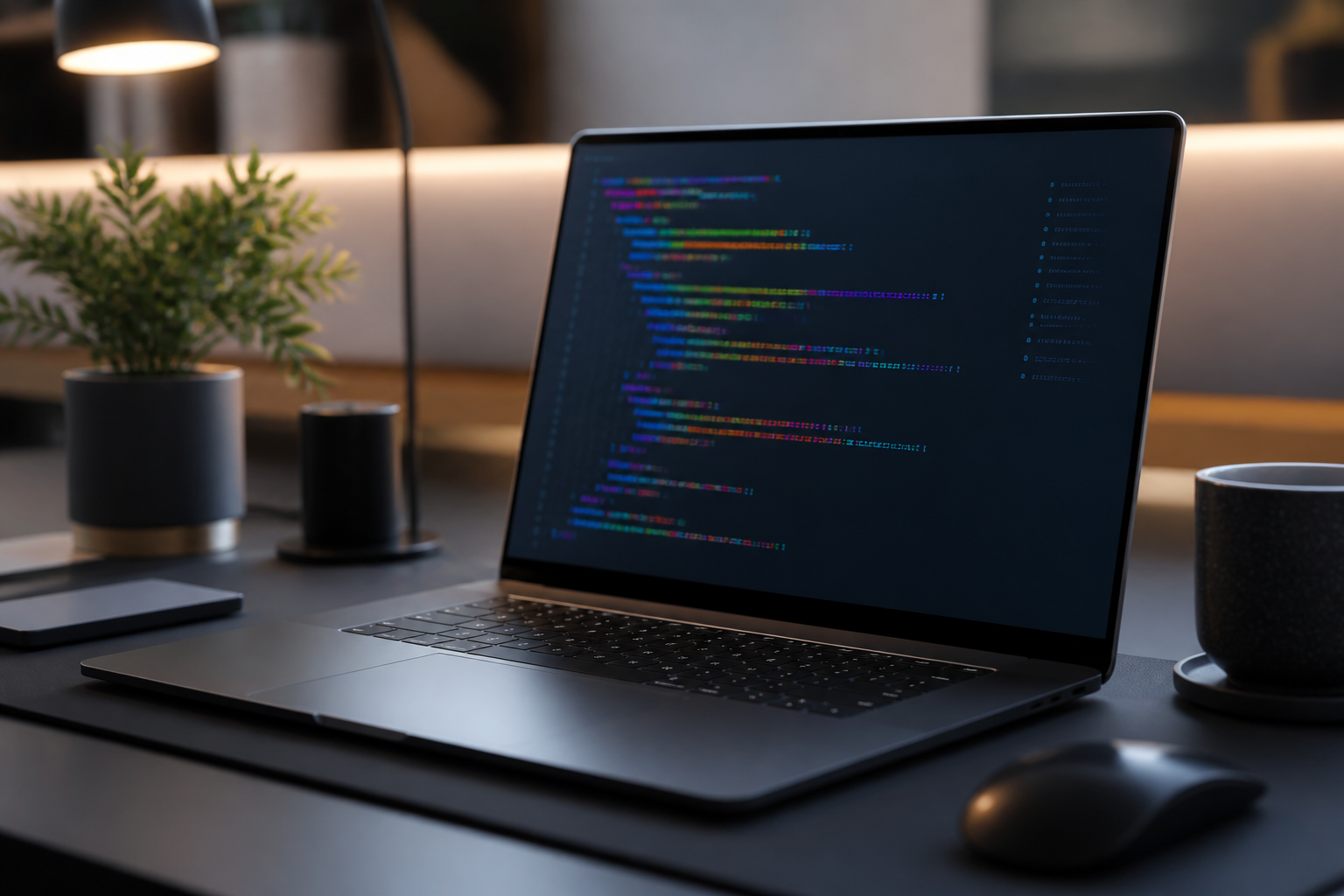
Most Mac users interact with their machines through the polished interface of macOS, clicking through folders and menus to get work done. While this is intuitive, it is rarely the most efficient path for power users. The Terminal is often perceived as a tool reserved for developers and system administrators, but it is actually one of the most versatile productivity tools available to anyone looking to streamline their digital life.
In this guide, we will bridge the gap between basic usage and professional mastery. From navigation shortcuts that save hours each week to advanced customization using Zsh, you will learn how to turn the command line into an extension of your creative and professional workflow. Whether you are automating file organization or managing system settings hidden from the System Settings app, the Terminal is your gateway to total control over your hardware.
The Modern Foundations: Why Zsh Matters
Since the release of macOS Catalina, Apple has transitioned the default shell from Bash to Zsh (Z shell). Understanding this change is vital because Zsh offers superior features like advanced tab completion, theme support, and powerful plugin ecosystems like Oh My Zsh. Before you begin your journey into the command line, ensure your environment is set up to assist you rather than hinder you.
One of the first things a professional does is customize their shell prompt. A clear prompt can tell you which directory you are in, which Git branch is active, and even the status of your last command. Without these visual cues, the Terminal can feel like a dark room where you are fumbling for the light switch. By configuring your .zshrc file, you can create a persistent environment that remembers your preferences every time you open a new window.
Essential Navigation and File Management
Speed in the Terminal comes from knowing the core commands that outperform Finder. While dragging and dropping files is fine for occasional use, bulk operations in the Terminal are nearly instantaneous. Master these primary commands to navigate your system with precision:
- ls -G: Lists files with color coding for directories and executables.
- cd -: Instantly jumps back to the previous directory you were working in.
- mkdir -p project/{src,bin,docs}: Creates a complex directory structure in a single line.
- cp -R: Recursively copies folders faster than the GUI can calculate file sizes.
- grep -r 'text': Searches for specific strings through every file in a directory tree.
Once you move beyond basic navigation, you can use wildcards and expansion to target specific files. For example, moving all image files from your desktop to a backup folder takes only a few seconds, even if there are thousands of files to sort through. This level of granular control is what defines a power user.
Customizing Your Environment with Aliases
Efficiency is often about reducing keystrokes. Aliases are short commands that act as shortcuts for longer, more complex ones. If you find yourself typing a long command repeatedly, it is time to turn it into an alias. You can define these in your shell configuration profile.
# Example .zshrc entries
alias ll='ls -alGh'
alias weather='curl wttr.in/NewYork'
alias flush='sudo dscacheutil -flushcache; sudo killall -HUP mDNSResponder'
The example above shows how 'll' can provide a detailed, human-readable list of files, while 'flush' combines two complex system commands to reset your DNS cache. These small optimizations compound over time, saving you minutes every single day.
Advanced Productivity: Piping and Redirects
The real power of the Terminal lies in the ability to chain commands together using the pipe operator (|). This allows the output of one command to become the input for the next, creating a custom data-processing pipeline. It is a philosophy of small tools working together to solve large problems.
For instance, if you want to find the five largest files in your Downloads folder, you can combine 'du' (disk usage), 'sort' (ordering), and 'head' (getting the top results). Instead of manually checking file sizes in Finder, the Terminal gives you the exact answer in milliseconds.
The command line is not about learning a list of commands; it is about learning a language of logic that gives you direct access to the computer's potential.
Automation with Shell Scripting
The final stage of Terminal mastery is shell scripting. A script is simply a text file containing a sequence of commands that the computer executes as a single unit. This is perfect for recurring tasks like daily backups, cleaning up temp files, or setting up a local development environment for a new project.
By saving these scripts and making them executable, you essentially build your own custom software tools tailored to your specific needs. Start small by automating a single annoying task, and slowly build a library of scripts that handle your system maintenance, so you don't have to.
Expert insights
- Investing time in learning 'Vim' or 'Nano' basics within the terminal allows you to edit configuration files without ever leaving your workflow, significantly reducing context-switching fatigue.
- Always use 'Homebrew' as your package manager on macOS. It simplifies the installation of command-line tools and keeps them updated with a single command: 'brew upgrade'.
Statistics & data
- Command-line interfaces can often execute file-management tasks up to 40% faster than graphical interfaces for experienced users.
- A 2023 survey indicated that 87% of professional software engineers prefer Zsh or Bash as their primary environment for system interaction over GUI tools.
Key takeaways
- Zsh is the modern standard for macOS and offers powerful customization via the .zshrc file.
- Aliases are the most effective way to save time by shortening frequently used long commands.
- Piping commands allows you to create custom workflows by connecting simple tools together.
- The 'Homebrew' package manager is an essential addition for any macOS power user.
Frequently asked questions
Is the Terminal dangerous for my Mac?
It can be if you run commands with 'sudo' without understanding them. Always verify commands from the internet before pasting them, especially those requiring your password.
How do I change the look of my Terminal?
Go to Terminal > Settings > Profiles. You can change colors, fonts, and transparency. For more advanced looks, consider installing the 'Oh My Zsh' framework.
What is the difference between a Shell and the Terminal?
The Terminal is the visual window (the app), while the Shell (like Zsh) is the program inside the window that interprets your commands and talks to the OS.
External references
Keep learning with StackForge
New, expert-reviewed tutorials are published regularly. Explore more guides in Gadgets & How-To Guides to deepen your skills.
More Gadgets & How-To Guides guides →
Written & reviewed by
Justin Schmella
Senior Industry Researcher & Content Specialist
Justin Schmella is a senior software engineer and technical educator with more than eight years of hands-on experience shipping production systems across web, cloud, and developer tooling. He began his career as a full-stack developer at a fast-growing SaaS company, where he led the migration of a monolithic application to a modern, service-oriented architecture used by hundreds of thousands of users.
Related tutorials
Mastering the macOS Terminal: A Guide to Boosting Productivity
Unlock the true power of your Mac by mastering the command line for faster workflows and advanced system control.
Mastering macOS Window Management: From Stage Manager to Shortcuts
A deep dive into organizing your Mac workspace for better focus and faster multitasking using built-in Apple tools.
Mastering macOS Window Management for Ultimate Productivity
Transform your cluttered Mac desktop into a streamlined workspace using built-in macOS tools and hidden power-user shortcuts.